FigJam-style connectors for flows in Figma Design.
For whom
People mapping user flows in Figma Design
Scope
Plugin · FigJam connectors · Prototyping
Tools
FigJam connectors / Figma Design / Prototyping
The idea
Arrowsthatstayconnected.
When mapping a flow in Figma Design, moving a screen can leave its arrows pointing to the wrong place. I built Autoflow to use native FigJam connectors that stay attached to screens, buttons, and instance layers. The solution uses the clipboard because Figma's API can't create these connectors directly in Design.
Always connected
Keepconnectorsattached.
I used native FigJam connectors so Figma keeps their endpoints attached when elements move or resize, even with the plugin closed.
Cart
Checkout, beforeCheckout
Pay
Connect
Createlinksfromtheclipboard.
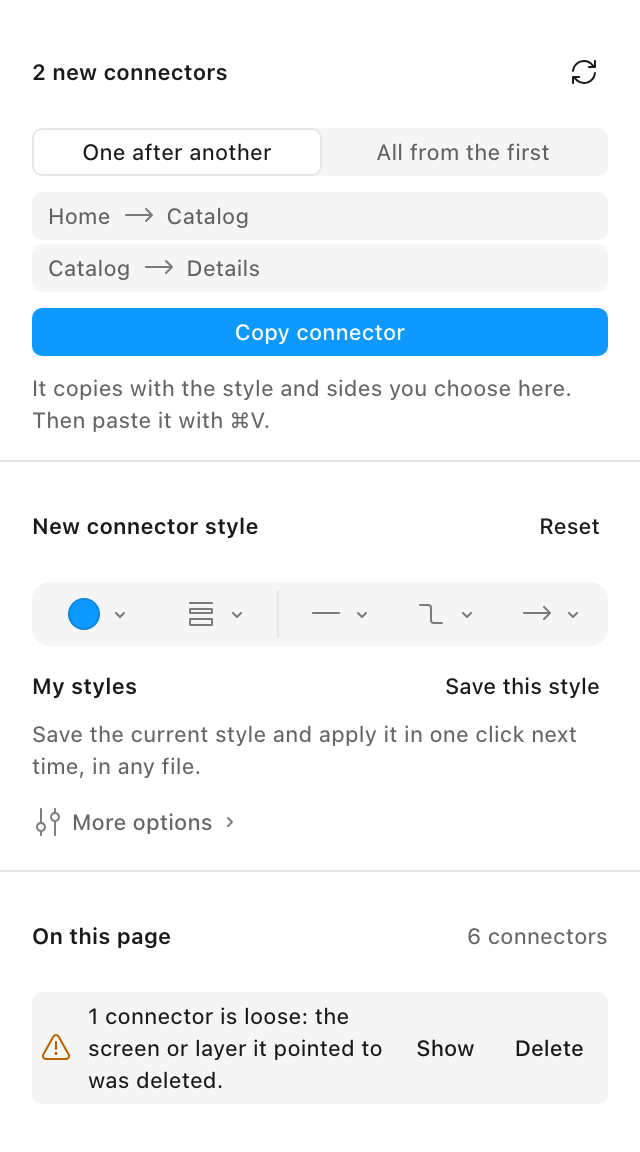
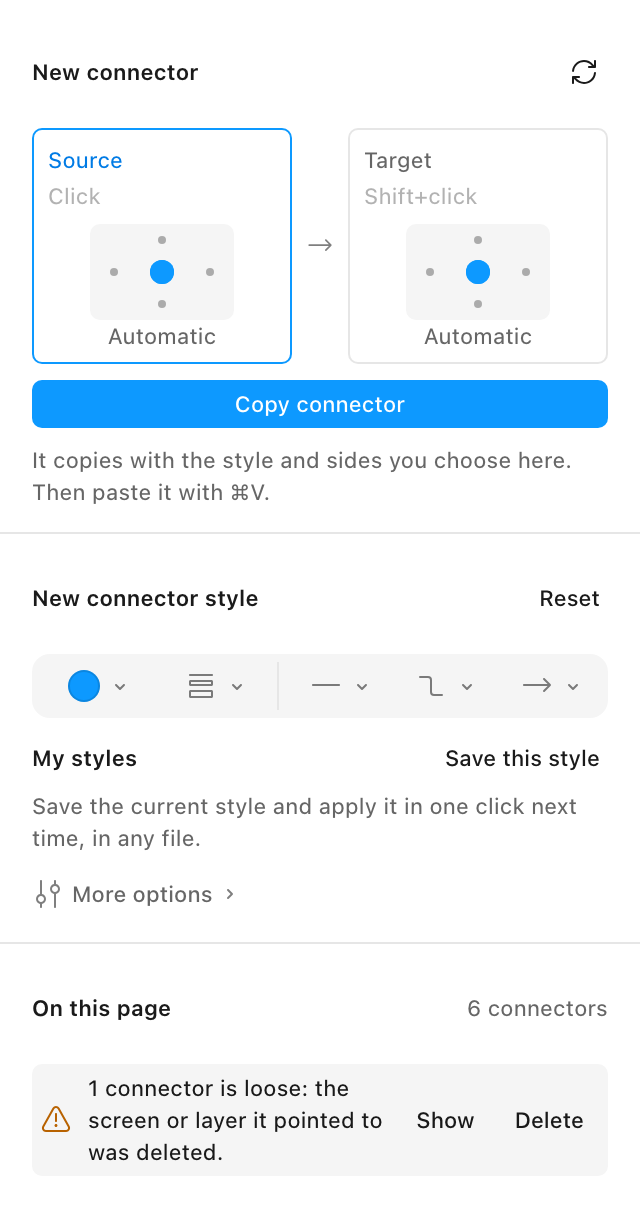
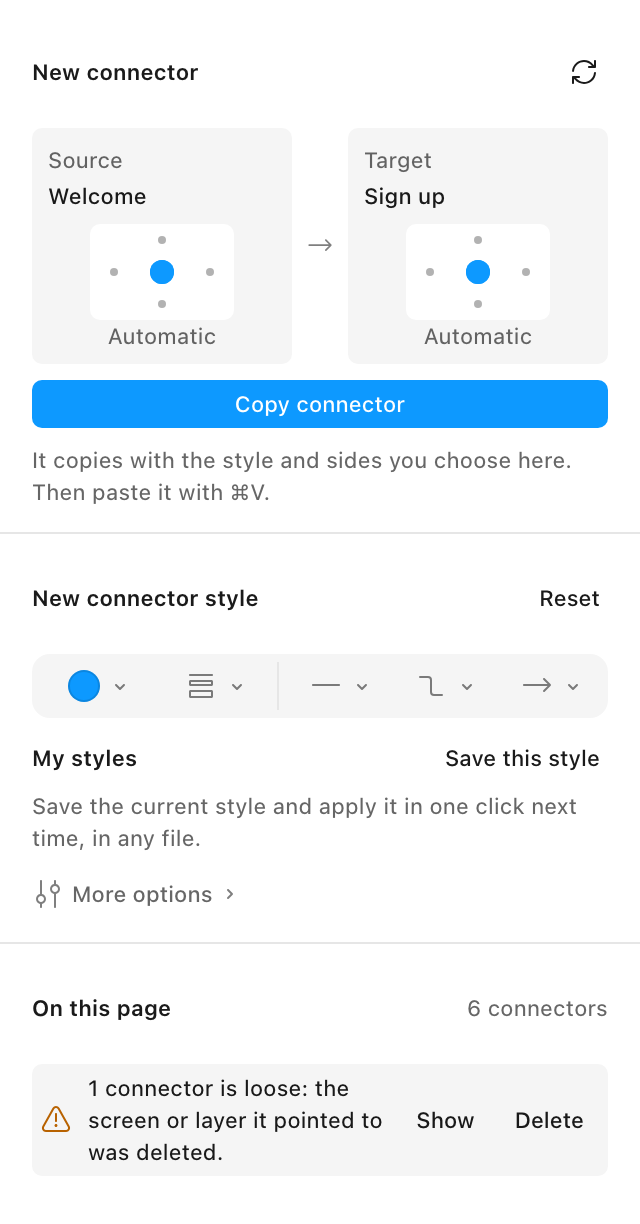
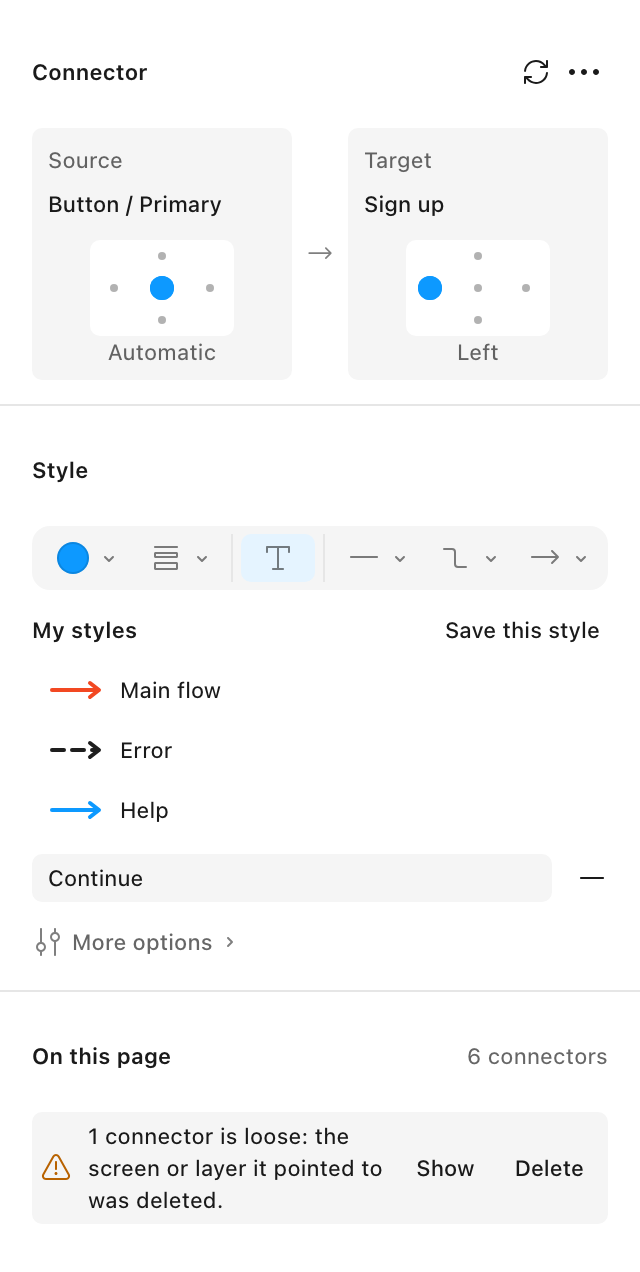
A click sets the source, and Shift-click selects the target. Copy connector prepares the styled arrow; ⌘V places it in the design file.
Flows
Connectmultipleelements.
I added two arrangements for selections of three or more elements: a sequence or connections from the first element to the rest.
A
B
C
One after anotherA → B → C, in selection order.
A
B
C
All from the firstA → B and A → C, like a menu.
Style
Reuseconnectorstyles.
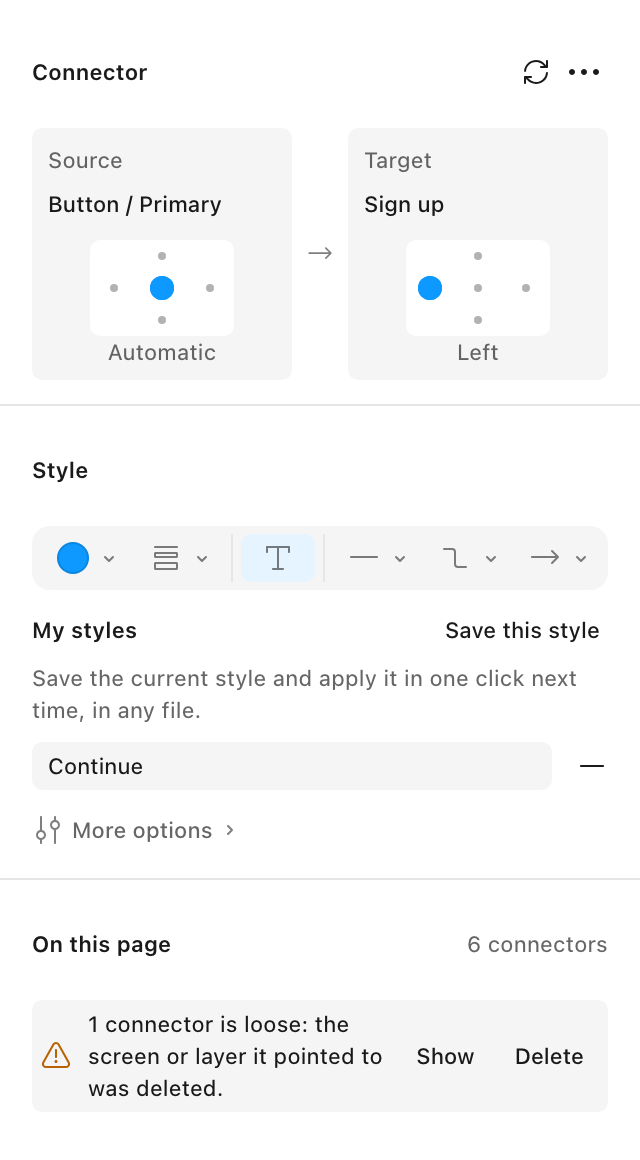
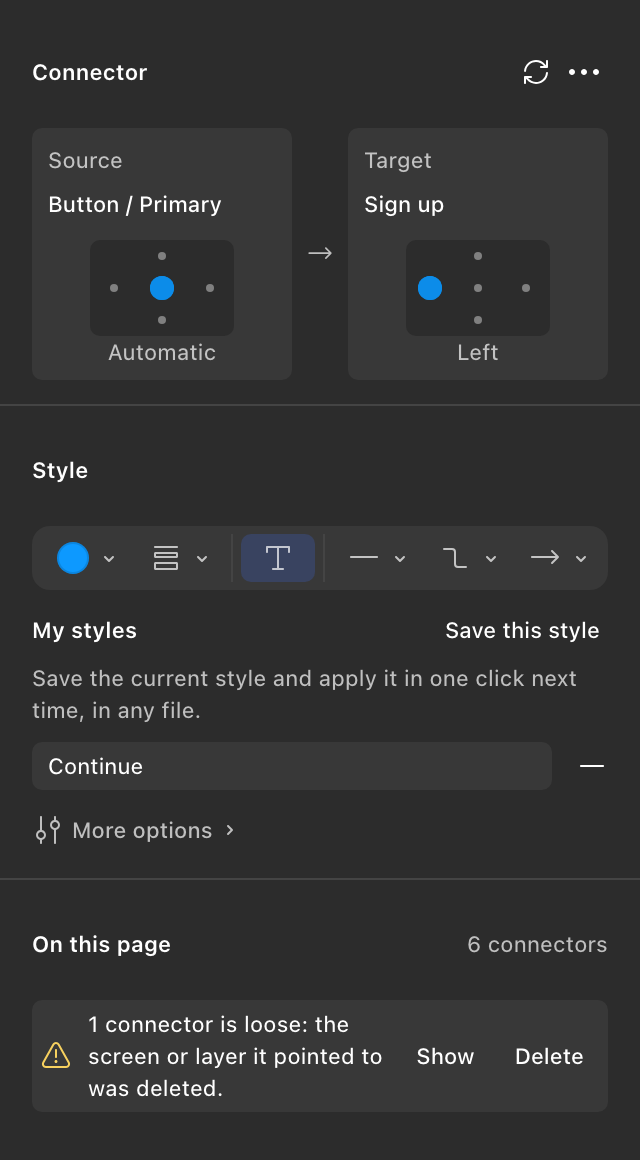
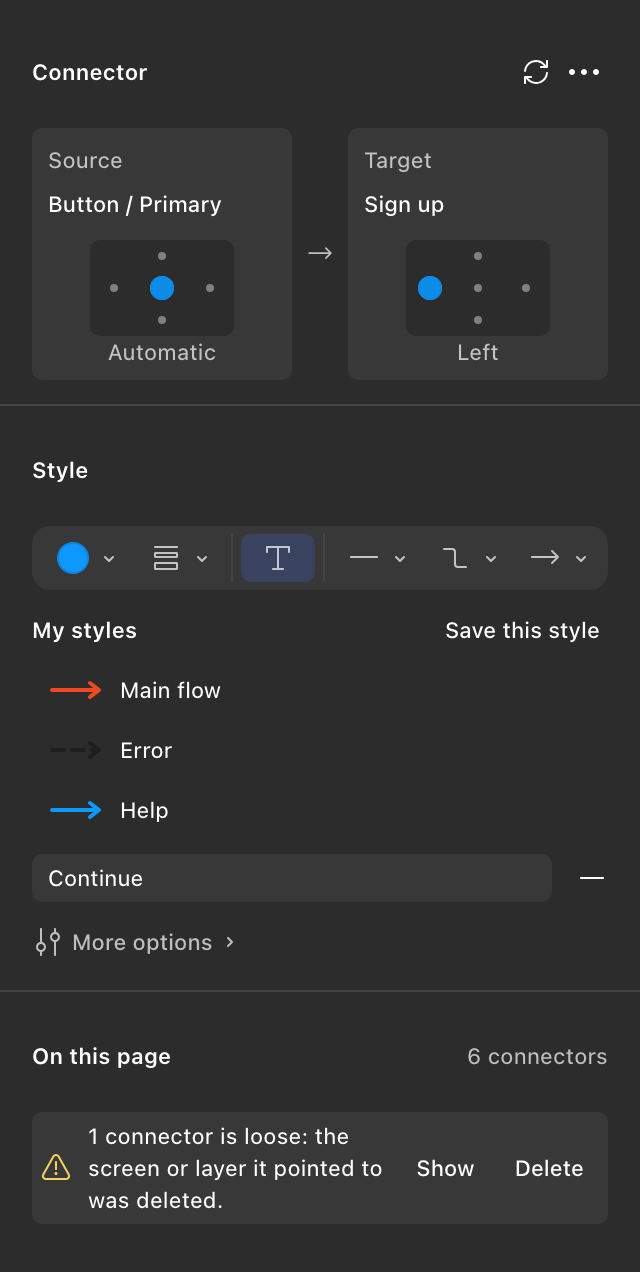
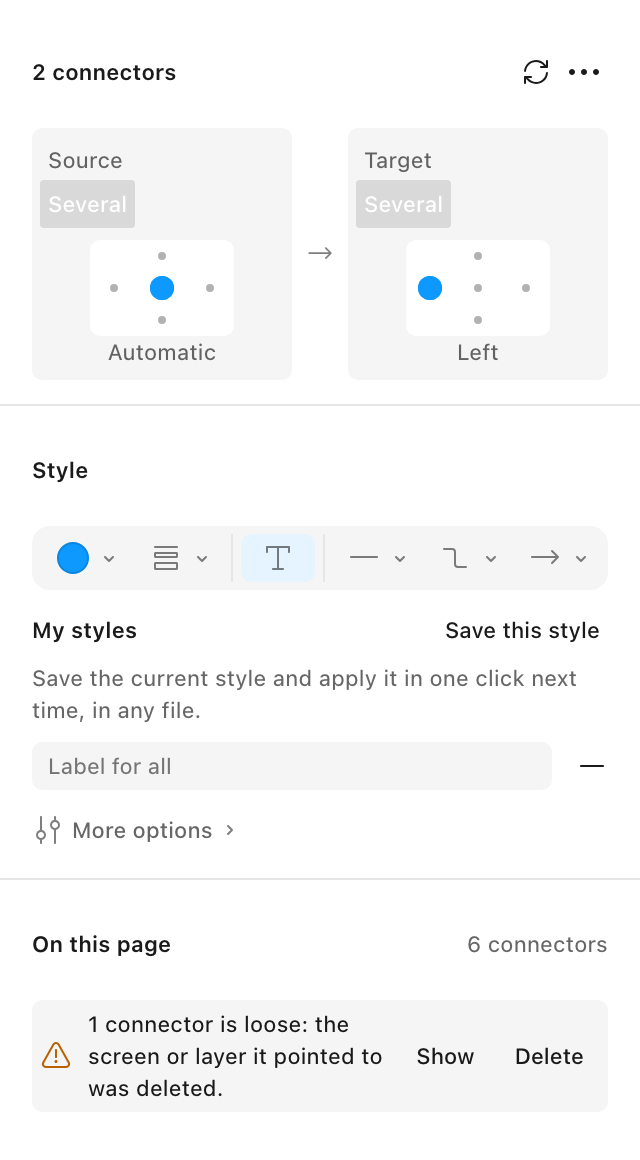
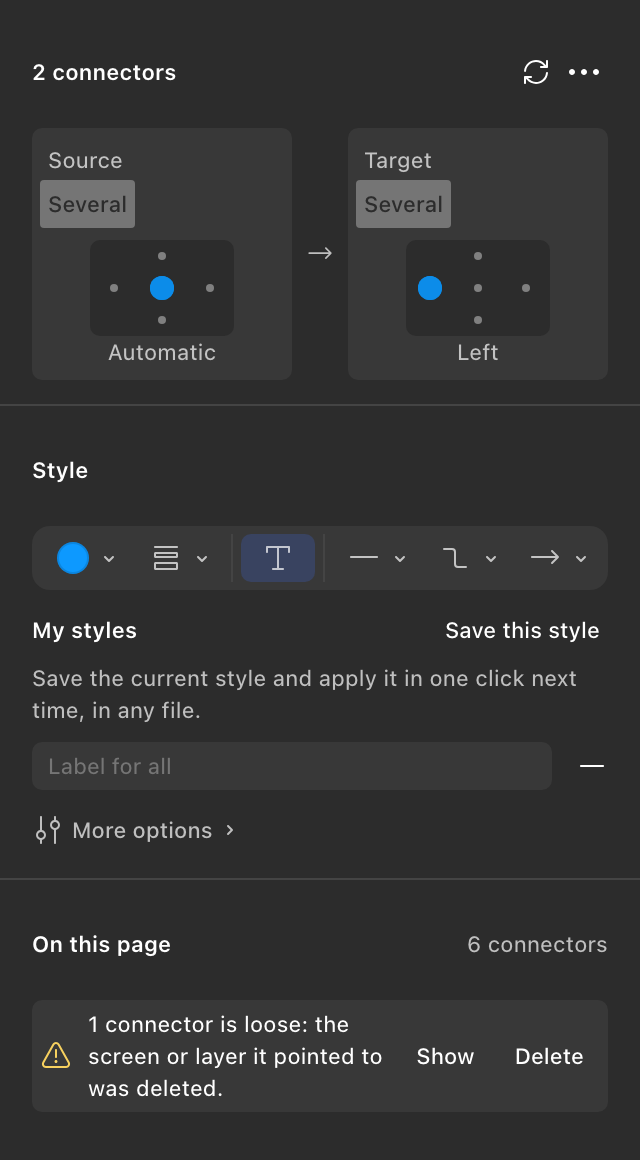
I brought color, stroke, labels, routing, and arrowheads into a FigJam-like toolbar. Styles can be saved and applied, including when editing multiple connectors.
Prototyping
Turnaflowintoaninteraction.
I added Create prototype interaction to generate an On click → Navigate interaction between a connector's source and target.
Home
Product
Cart
ViewBuy
Autoflow connectors→
Home
Product
Cart
Prototype interactionsOn click → Navigate to
Implementation
HowIbuiltit.
A FigJam connector on the clipboard
The Design API cannot create or clone connectors directly. I used a FigJam connector tagged with sharedPluginData as the clipboard source. When pasted, the plugin listens for nodechange, maintains one copy per link, moves it onto the page or shared section, and anchors its endpoints with AUTO.
Tested outside Figma
I added tests for element pairing, anchor behavior, and plugin–UI messaging, simulating pasting with a Figma mock. I captured the compiled interface in its test environment.
Autoflow
FigJam-style connectors for flows in Figma Design.
FigJam connectors
Native connectors pasted from the clipboard.
Nested layers
Buttons and nested instance layers.
My Styles
Stored in your Figma preferences, not the file.
Prototypes
On click → Navigate from a connector.
Figma UI3
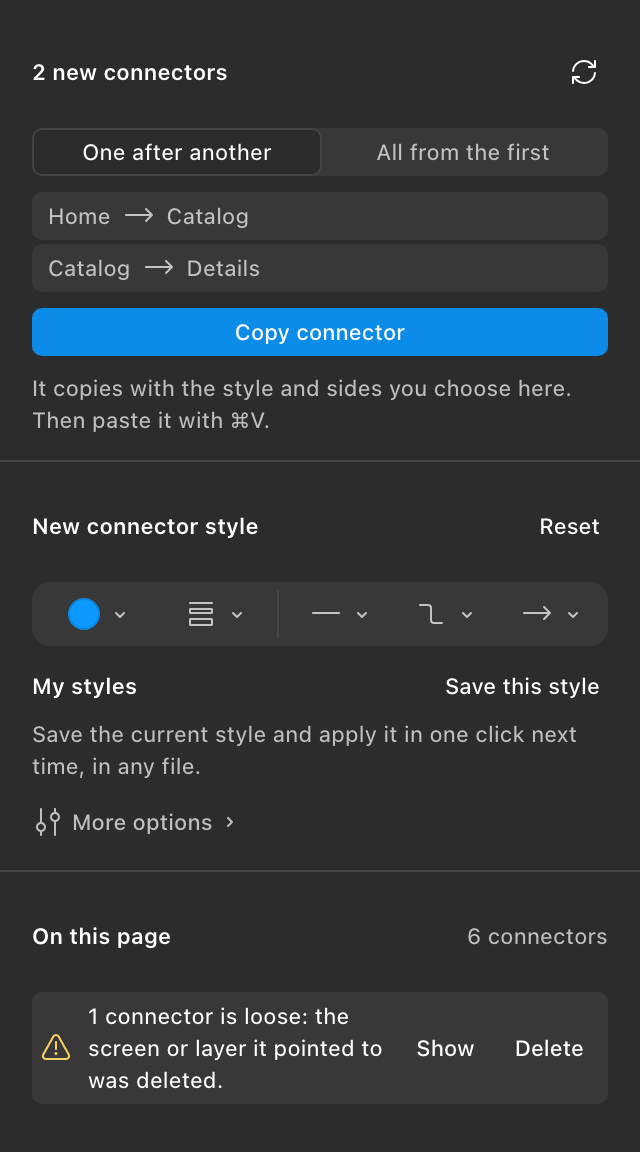
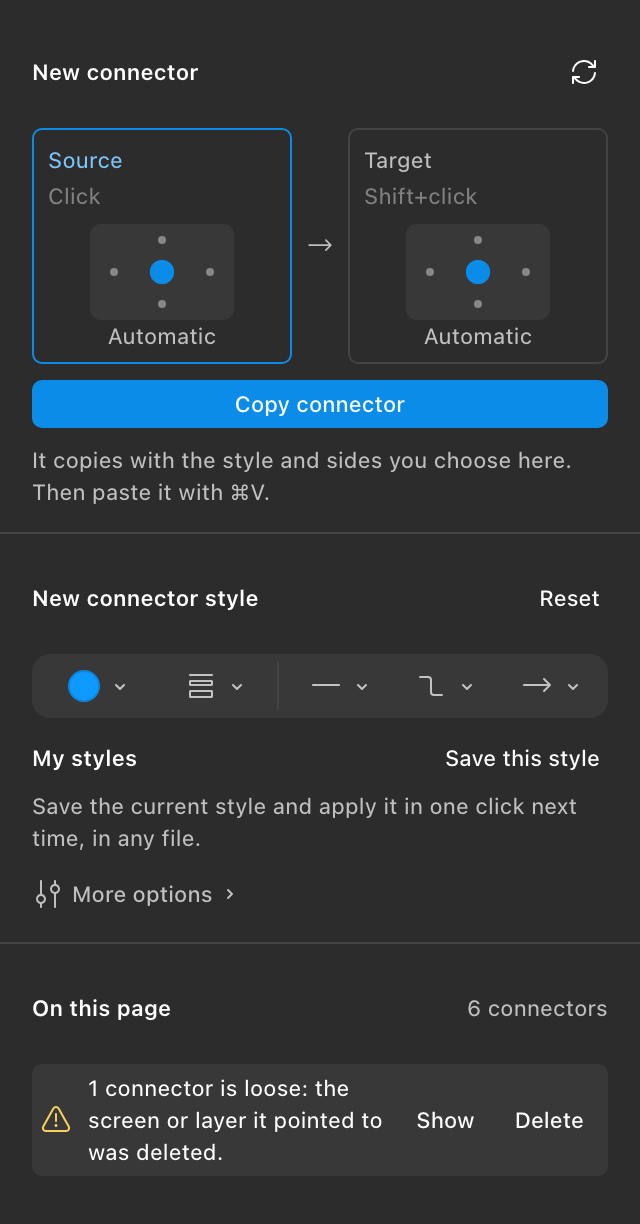
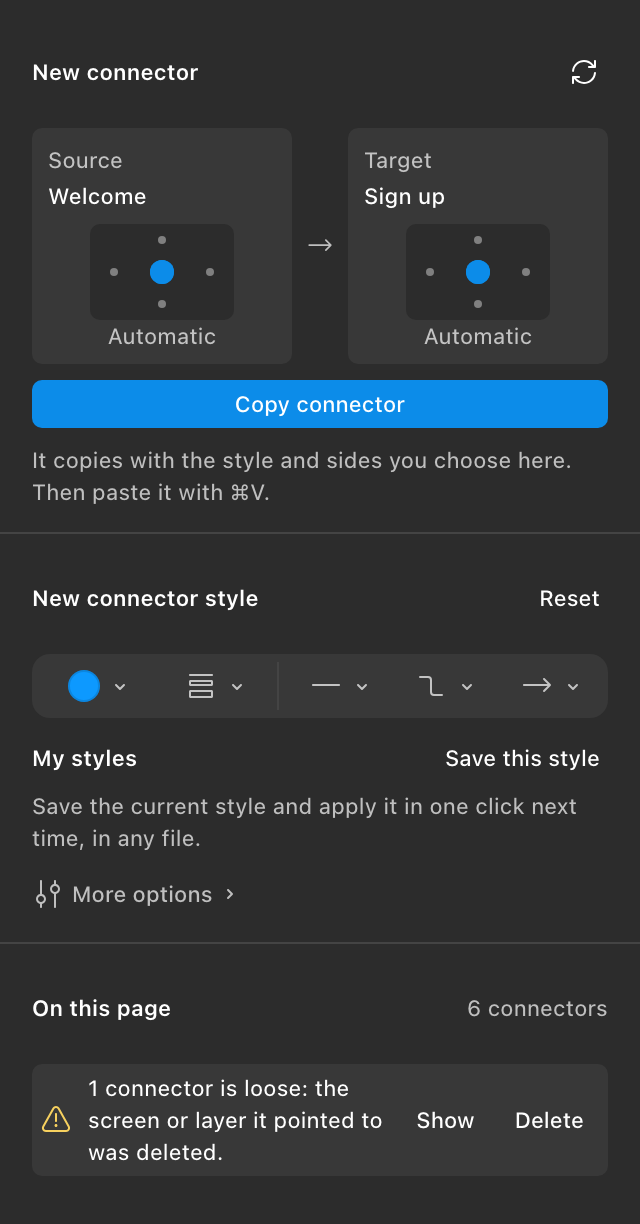
FigUI3, light and dark, with no network access.
Figma plugin
Each connector requires a manual ⌘V with the plugin open. Connectors don't route around other screens, and their label background cannot be changed through the Design API.